分类目录归档:IT

在 Ubuntu 16.04 上编译纯 CPU 挖矿程序

独服的 CPU 闲着也是闲着,小挖怡情,大挖伤身。本文主要基于 NiceHash Miner 可用的挖矿程序,在 Linux 下编译 CPU 可用的版本

Equihash miner for NiceHash

项目源码在这里,这个 miner 的编译稍稍有些麻烦,很多依赖需要自己安装。由于是纯 CPU 挖矿,尽管页面上提到了 CUDA Kit,但是我们并不需要安装这个。

需要的依赖有这些,Boost 1.62+ 和 CMake 3.5+,但是实际操作中,由于 CMake 和 Boost 库存在版本兼容性问题(Boost 1.63 / CMake 3.7+; Boost 1.64 / CMake 3.8+; Boost 1.65 & 1.65.1 / CMake 3.9.3+),因此不能采用简单的 apt 方式安装,而需要自己下载。

Boost 我选择了 1.65.1,具体安装看这里,具体命令如下:

wget https://dl.bintray.com/boostorg/release/1.65.1/source/boost_1_65_1.tar.bz2
tar --bzip2 -xf /path/to/boost_1_65_1.tar.bz2
cd path/to/boost_1_65_1
./bootstrap.sh
./b2 install

然后安装 CMake 3.9.3+,这里我一开始就被坑了,如果不选择合适的 CMake 版本,则编译时无法找到 Boost 库。

wget https://cmake.org/files/v3.9/cmake-3.9.6-Linux-x86_64.sh
chmod +x /path/to/cmake-3.9.6-Linux-x86_64.sh
sudo /path/to/cmake-3.9.6-Linux-x86_64.sh #Set your own install path during the process
sudo ln -s /path/to/cmake-3.9.6-Linux-x86_64/bin/* /usr/local/bin

然后运行 cmake --version 查看版本,应该已经是 3.9.3+ 了

接下来按照 GitHub 页面操作

  1. git clone https://github.com/nicehash/nheqminer.git
  2. 修改根目录下的 CMakeList.txt,修改这样一行: option(USE_CUDA_DJEZO "USE CUDA_DJEZO" ON) 后面的 ON 为 OFF,这是因为我们要纯 CPU 挖矿,不编译 CUDA 版本。
  3. cd nheqminer/cpu_xenoncat/asm_linux/
  4. chmod +x fasm
  5. sh assemble.sh
  6. cd ../../../
  7. mkdir build && cd build
  8. cmake ../nheqminer
  9. make -j $(nproc)

接下来在 build 目录下就会看到编译好的 nheqminer 程序,使用 nheqminer -l equihash.eu.nicehash.com:3357 -u <NH_BTC_ADDRESS>.<worker_name> -t <n_threads> 开始挖矿

CPUMiner-Multi

  1. git clone https://github.com/tpruvot/cpuminer-multi.git
  2. 安装依赖 apt install automake autoconf libcurl4-openssl-dev libjansson-dev libssl-dev
  3. cd cpuminer-multi
  4. ./build.sh
  5. ./cpuminer -a <algo> -o stratum+tcp://<pool_addr> -u <NH_BTC_ADDRESS>.<worker_name> -t <n_threads>

CPUMiner-Multi Help:

Usage: cpuminer-multi [OPTIONS]
Options:
  -a, --algo=ALGO       specify the algorithm to use
                          axiom        Shabal-256 MemoHash
                          bitcore      Timetravel with 10 algos
                          blake        Blake-256 14-rounds (SFR)
                          blakecoin    Blake-256 single sha256 merkle
                          blake2s      Blake2-S (256)
                          bmw          BMW 256
                          c11/flax     C11
                          cryptolight  Cryptonight-light
                          cryptonight  Monero
                          decred       Blake-256 14-rounds 180 bytes
                          dmd-gr       Diamond-Groestl
                          drop         Dropcoin
                          fresh        Fresh
                          groestl      GroestlCoin
                          heavy        Heavy
                          jha          JHA
                          keccak       Keccak
                          luffa        Luffa
                          lyra2re      Lyra2RE
                          lyra2rev2    Lyra2REv2 (Vertcoin)
                          myr-gr       Myriad-Groestl
                          neoscrypt    NeoScrypt(128, 2, 1)
                          nist5        Nist5
                          pluck        Pluck:128 (Supcoin)
                          pentablake   Pentablake
                          quark        Quark
                          qubit        Qubit
                          scrypt       scrypt(1024, 1, 1) (default)
                          scrypt:N     scrypt(N, 1, 1)
                          scrypt-jane:N (with N factor from 4 to 30)
                          shavite3     Shavite3
                          sha256d      SHA-256d
                          sia          Blake2-B
                          sib          X11 + gost (SibCoin)
                          skein        Skein+Sha (Skeincoin)
                          skein2       Double Skein (Woodcoin)
                          s3           S3
                          timetravel   Timetravel (Machinecoin)
                          vanilla      Blake-256 8-rounds
                          x11evo       Permuted x11
                          x11          X11
                          x13          X13
                          x14          X14
                          x15          X15
                          x17          X17
                          xevan        Xevan (BitSend)
                          yescrypt     Yescrypt
                          zr5          ZR5
  -o, --url=URL         URL of mining server
  -O, --userpass=U:P    username:password pair for mining server
  -u, --user=USERNAME   username for mining server
  -p, --pass=PASSWORD   password for mining server
      --cert=FILE       certificate for mining server using SSL
  -x, --proxy=[PROTOCOL://]HOST[:PORT]  connect through a proxy
  -t, --threads=N       number of miner threads (default: number of processors)
  -r, --retries=N       number of times to retry if a network call fails
                          (default: retry indefinitely)
  -R, --retry-pause=N   time to pause between retries, in seconds (default: 30)
      --time-limit=N    maximum time [s] to mine before exiting the program.
  -T, --timeout=N       timeout for long poll and stratum (default: 300 seconds)
  -s, --scantime=N      upper bound on time spent scanning current work when
                          long polling is unavailable, in seconds (default: 5)
      --randomize       Randomize scan range start to reduce duplicates
  -f, --diff-factor     Divide req. difficulty by this factor (std is 1.0)
  -m, --diff-multiplier Multiply difficulty by this factor (std is 1.0)
  -n, --nfactor         neoscrypt N-Factor
      --coinbase-addr=ADDR  payout address for solo mining
      --coinbase-sig=TEXT  data to insert in the coinbase when possible
      --max-log-rate    limit per-core hashrate logs (default: 5s)
      --no-longpoll     disable long polling support
      --no-getwork      disable getwork support
      --no-gbt          disable getblocktemplate support
      --no-stratum      disable X-Stratum support
      --no-extranonce   disable Stratum extranonce support
      --no-redirect     ignore requests to change the URL of the mining server
  -q, --quiet           disable per-thread hashmeter output
      --no-color        disable colored output
  -D, --debug           enable debug output
  -P, --protocol-dump   verbose dump of protocol-level activities
      --hide-diff       Hide submitted block and net difficulty
  -S, --syslog          use system log for output messages
  -B, --background      run the miner in the background
      --benchmark       run in offline benchmark mode
      --cputest         debug hashes from cpu algorithms
      --cpu-affinity    set process affinity to cpu core(s), mask 0x3 for cores 0 and 1
      --cpu-priority    set process priority (default: 0 idle, 2 normal to 5 highest)
  -b, --api-bind        IP/Port for the miner API (default: 127.0.0.1:4048)
      --api-remote      Allow remote control
      --max-temp=N      Only mine if cpu temp is less than specified value (linux)
      --max-rate=N[KMG] Only mine if net hashrate is less than specified value
      --max-diff=N      Only mine if net difficulty is less than specified value
  -c, --config=FILE     load a JSON-format configuration file
  -V, --version         display version information and exit
  -h, --help            display this help text and exit
 

Kimsufi 独服购买的一些套路

作为一个玩盒子玩了快一年的人,Online.net、Kimsufi 这样的便宜独服商家如果都没接触过,实在是说不过去,我也不例外。在盒子价格愈发上升的当下,这两家的价格依旧那么便宜也确实是不可多得的一件事。不过独服不像 VPS,首次购买都存在一个设置费的问题,如果在购买了之后很短的时间内发现同款可以以更低的价格买到,就会非常纠结,究竟是应该选择更低的续费价格且再出一笔设置费,还是考虑到设置费的成本,不再去管那一点点的差价(对,KS-2E 说的就是你)。

不过这篇文章想要讨论的并不是 KS 的独服又出特价了的问题,而是想记录一下购买 Kimsufi 独服的一些可以省钱的小技巧。

抛开法国人可能根本就搞不清自己在卖什么的问题不谈(比如 17 年年初可以用 KS-3C 的价格开出 KS-4C 的高配之类),先来说一说 Kimsufi 的网站账户体系。无论访问 Kimsufi 哪一个 TLD 的域名(.ie / .fr / .com),最终都会导向至 Kimsufi.com 下的一个分支。据我的观察,主要有三套账户体系:

  1. kimsufi.com/en 和 kimsufi.com/fr
  2. kimsufi.com/ca/en 和 kimsufi.com/ca/fr
  3. kimsufi.com/us/en

其中第一个可以通过 kimsufi.ie 跳转得到,使用欧元结算,设置费 9.99 EUR 且存在 20% 的 VAT,虽然可以免掉,但是对于中国大陆用户来说非常不友好,因为需要提交英文的地址和信息证明。

第二个可以通过 kimsufi.ca 跳转得到,使用加拿大元结算,设置费 13.99 CAD,不存在欧盟增值税的问题。但是由于购买需要提供合法的加拿大地址和手机号,因此对于中国大陆用户来说也不是很方便。

第三个可以在利用美国 IP 地址访问 kimsufi.com 时自动跳转得到,使用美元结算,设置费 13.99 USD,不存在增值税的问题。相比之下,虽然有的时候可能价格相对欧洲区贵一点点,但是考虑到 VAT 的问题,反而便宜不少。因此这个区域的账户对于中国用户来说是一个好的选择。

接下来说促销的问题,我们知道 Kimsufi 的服务器经常出现一些促销,比如 KS-2E 和 KS-3C 等等。促销的购买链接一般是这样的:

  • https://www.kimsufi.com/fr/commande/kimsufi.xml?reference=<productID>
  • https://www.kimsufi.com/ca/en/order/kimsufi.xml?reference=<productID>
  • https://www.kimsufi.com/en/order/kimsufi.xml?reference=<productID>
  • https://www.kimsufi.com/ca/fr/commande/kimsufi.xml?reference=<productID>
  • https://www.kimsufi.com/us/en/order/kimsufi.xml?reference=<productID>

根据我的观察,无论 Kimsufi 在哪个区域进行促销,即其他区域的网站不存在这样的促销,所有区域的购买链接都会可用,但是价格会根据 OVH 内部的一套汇率规则将促销区域的价格换算到你所购买的区域的价格。比如欧洲区 6.99 EUR 促销的 KS-2E,使用美区账号购买就会变成 8.39 USD,换算回欧元的话,就是 7 欧多一点点,考虑到 VAT 的问题,仍然相当实惠,因为如果使用欧元区账号购买,同款就需要 8.39 EUR了。

综上所述,如果需要购买 Kimsufi 的便宜独立服务器,还是注册一个美区账号比较好。加上 OVH 的 Paypal 付款无法支持银联通道结算,如果使用欧元结算,通过 VISA / MasterCard 通道结算有时会面临一个货币转换费的问题,因此无论是从价格方面考虑,还是考虑到免税的各种麻烦,都应该选择 Kimsufi 美区账号。

OpenVZ 架构 VPS 配置 IPv6 TunnelBroker

虽然现在 IPv6 尚未完全普及,但是作为一个本地有 IPv6 连接,盒子也是双栈 IP 的用户,双栈 VPS 对我来说也算是一个很有意义的特性。但是很多 Low End VPS 商家售卖的 OpenVZ VPS 并不提供 IPv6 地址,OpenVZ 架构也不像 KVM 一样可以方便地添加 TunnelBroker 实现双栈网络,因此便需要寻找其他的解决方案。

所幸并不是我一个人有这个需求,借助 tb_userspace 这个小工具,可以很快地完成这样的配置工作。记录配置过程如下:

  1. 在 tunnelbroker.net 创建一个新的 Regular Tunnel,取得 Server IPv4 Address 和 Client IPv4 Address 两个配置
  2. 下载 tb_userspace 源代码,编译。此时假设 tb_userspace 存放于 /root目录下
    wget https://down.gloriousdays.pw/Tools/tb_userspace.c
    gcc tb_userspace.c -l pthread -o tb_userspace
  3. 创建自启动脚本 /etc/init.d/ipv6tb
    #! /bin/sh
     
    ### BEGIN INIT INFO
    # Provides:          ipv6
    # Required-Start:    $local_fs $all
    # Required-Stop:     $local_fs $network
    # Default-Start:     2 3 4 5
    # Default-Stop:      0 1 6
    # Short-Description: starts the ipv6 tunnel 
    # Description:       ipv6 tunnel start-stop-daemon
    ### END INIT INFO
     
    # /etc/init.d/ipv6tb
     
    touch /var/lock/ipv6tb
     
    case "$1" in
      start)
        echo "Starting ipv6tb "
          setsid /root/tb_userspace tb <Server IPv4 Address> <Client IPv4 Address> sit > /dev/null 2>&1 &
          sleep 3s #ugly, but doesn't seem to work at startup otherwise
          ifconfig tb up
          ifconfig tb inet6 add <Client IPv6 Address from your Routed /64> ::XXX/128 #Add as many of these as you need from your routed /64 allocation
          ifconfig tb mtu 1480
          route -A inet6 add ::/0 dev tb
          route -A inet6 del ::/0 dev venet0
        ;;
      stop)
        echo "Stopping ipv6tb"
          ifconfig tb down
          route -A inet6 del ::/0 dev tb
          killall tb_userspace
        ;;
      *)
        echo "Usage: /etc/init.d/ipv6tb {start|stop}"
        exit 1
        ;;
    esac
     
    exit 0
    
    
    chmod 0755 /etc/init.d/ipv6tb
    update-rc.d ipv6tb defaults #May cause problems, explain later
  4. Ubuntu 16.04 (systemd) 的额外配置
    如果是使用 Upstart 的 Ubuntu 版本,使用 update-rc.d 就可以创建相应的启动项,但是在某些 Ubuntu 16.04 上,如 HostDare 的 VPS,update-rc.d 在将 SysVinit 脚本做一个 wrapper 以后产生的 Systemd 自启动脚本并不能正常工作。经过排查,发现这个问题产生于 Systemd 脚本的 Type 问题,ipv6tb 应给以 Forking 方式启动,而不是默认的 Simple 模式,如果按照默认模式启动,就会莫名其妙地卡住。因此,如果在 Ubuntu 16.04 上配置,不应该使用 update-rc.d 方式创建 Systemd Wrapped SysVinit 脚本,而应该自己在 /etc/systemd/system 里写一个脚本。

    [Unit]
    Description=ipv6tb
    After=network-online.target
    
    [Service]
    Type=forking
    ExecStart=/usr/bin/sudo /etc/init.d/ipv6tb start
    ExecStop=/usr/bin/sudo /etc/init.d/ipv6tb stop
    Restart=always
    
    [Install]
    WantedBy=multi-user.target

之后执行 systemctl enable ipv6tb.service 就可以正常使用了。

关于 SSH Key 使用的一些注意事项

SSH 使用 pubkey 认证方式自动登陆的安全性要求其实比想象中严格很多,除此之外配置也有很多讲究,目前遇到的几点简单列举如下:

  • 关于 private key 及其路径的权限
    • /home/<username> 目录为 700
    • /home/<username>/.ssh 目录为 700
    • /home/<username>/.ssh/authorized_keys 为 600
    • /home/<username>/.ssh/<privateKey> 为 600
  • 关于 SSH 的配置文件
    • SSH 登陆全局配置文件:/etc/ssh/ssh_config
    • SSH 单用户配置文件:/home/<username>/.ssh/config
    • 如果用 sudo 命令执行 ssh,相当于对于 ssh 命令使用了 root 或对应用户的环境,应在对应的 home 目录下放置相应的 privateKey 和 config

Online Dedibox IPv6 配置

Online 的 IPv6 配置真是不一般地蛋疼,官方文档上面那个 DHClient6 完全不能用,在 U2 上有人推荐使用 Dibbler,但是在上一台挂掉的盒子上也还是不好用,平均三天会挂掉一次。在最新的一台盒子上尝试放弃 Online 自己的 IPv6 线路,使用 HE 的 TunnelBroker,然而根本没办法加载网络设备,我也是没有任何办法。

现在又找到了一版 DHClient6 配置,记录如下:

将如下内容写入 /etc/network/interfaces

iface eno1 inet6 static
  address <one IPv6 address from your block from Online>
  netmask 56
  accept_ra 1
  pre-up /sbin/dhclient -1 -v -pf /run/dhclient6.eno1.pid -lf /var/lib/dhcp/dhclient6.eno1.leases -cf /etc/dhcp/dhclient6.conf -6 -P eno1

创建 /etc/dhcp/dhclient6.conf

interface "eno1" {
  send dhcp6.client-id <your DUID for the subnet>;
  request;
}

之后运行 systemctl reload-or-restart networking.service

按照我之前的经历,DHClient6 获得的 IPv6 地址只能存活 12 小时,所以我先继续配置,等待 12 小时之后再来更新。

更新:已经将近 24 小时,目前 IPv6 仍然存活,认为配置成功。

从零开始的盒子:Online Dedibox 盒子配置记录

讲真,我也记不得这是我第几次配盒子了,但是这次我的主力盒子 & 杂活独立服务器挂掉还是给我造成了很大的损失。一方面,我损失了所有的盒子配置,包括澄空学园字幕组和 LoliHouse 的公网分流记录和文件,还有一些刷 PT 的环境;另一方面,我损失了虚拟机上的 Windows 压制环境;还有一些特定用途的杂活类服务,比如 Node.js 环境、Python / Anaconca 环境等等。为了以后维护方便,也为了给有同样需求的人一个参考,我在这里记录一下配置的历程。

先说点别的吧,关于这个盒子为什么会突然挂掉。起因是昨天(2017 年 10 月 9 日)下午至晚上,某国的大型网络过滤系统突然发威,在全国范围内干掉了我盒子的 IP 地址,我就很奇怪,我盒子一不做代理、二不放网站,就几个 BT 客户端的 WebUI 跑在上面,怎么就无缘无故给我过滤掉了。发现了 IP 问题之后,我尝试订购了一个 Failover IP 地址作为备用 IP。在配置的时候,由于我想要把这个 IP 作为我的主 IP 而改动了路由表,然后就被上级交换机锁了网络端口,与客服沟通之后,由于问题在短时间内无法解决,进而选择换机,我也丢失了所有数据。

先整理一下大致需求:

  1. Server As a Seedbox
    1. Update Kernel & BBR & BBR_powered
    2. Deluge ( Main BT/PT Client )
    3. Transmission ( Secondary PT Client )
    4. UTserver ( Specialized BT Client for SumiSora_Initial )
    5. Tixati ( Specialized BT Client for SumiSora_Main )
    6. qBittorrent ( Specialized BT Client for LoliHouse )
    7. Jailed SSH User ( For SumiSora_Initial SFTP Upload )
    8. SSHFS (Map Wishosting Stroage KVM Disk, not decided yet; maybe let Tixati work on this disk )
  2. Server As an Encoding Server
    1. VMware WorkStation
    2. gcc6
    3. Windows 7 & Activation
    4. Runtime Library
    5. Python & VapourSynth
    6. BaiduNetDisk
  3. Server As a Computer
    1. Node.js Http Server
    2. Anaconda Environment in Windows VM
    3. IPv6 Configuration
    4. Xfce & VNCserver
    5. Wine
    6. Firefox
  4. Server As a Storage Box
    1. Jailed SSH User ( Website Backup )

接下来开始安装:

  • 系统安装

系统仍然选择了我熟悉的 Ubuntu 16.04 LTS Server,由于我的服务器硬盘是 SoftRaid,在配置的时候还遇到了一些问题。最主要的问题就是 SWAP 分区不能使用 RAID0,如果这么选择安装操作系统就会报错。

  • 预配置及软件源添加
sudo apt-get install python-software-properties software-properties-common
sudo add-apt-repository ppa:transmissionbt/ppa
sudo add-apt-repository ppa:deluge-team/ppa
sudo add-apt-repository ppa:qbittorrent-team/qbittorrent-stable
curl -sL https://deb.nodesource.com/setup_9.x | sudo -E bash -
sudo dpkg --add-architecture i386 
wget -nc https://dl.winehq.org/wine-builds/Release.key 
sudo apt-key add Release.key 
sudo apt-add-repository https://dl.winehq.org/wine-builds/ubuntu/
sudo add-apt-repository ppa:ubuntu-toolchain-r/test
  • 安装一系列软件
sudo apt update
sudo apt install xfce4 vnc4server deluged deluge-web qbittorrent transmission-daemon sshfs nodejs firefox build-essential fonts-noto gtk3-engines-xfce xfce4-goodies xfce4-power-manager
sudo apt-get install --install-recommends winehq-stable
sudo apt-get install gcc-7 g++-7
sudo update-alternatives --install /usr/bin/gcc gcc /usr/bin/gcc-7 60 --slave /usr/bin/g++ g++ /usr/bin/g++-7
sudo update-alternatives --config gcc
  • Kernel Update & BBR_powered

在 http://kernel.ubuntu.com/~kernel-ppa/mainline/ 上下载 4.11 版本的内核,4.12 存在 VirtIO 方面的 bug,4.13+ 无法适配 BBR_powered 模块,所以采用 4.11.12

wget http://kernel.ubuntu.com/~kernel-ppa/mainline/v4.11.12/linux-headers-4.11.12-041112_4.11.12-041112.201707210350_all.deb
wget http://kernel.ubuntu.com/~kernel-ppa/mainline/v4.11.12/linux-headers-4.11.12-041112-generic_4.11.12-041112.201707210350_amd64.deb
wget http://kernel.ubuntu.com/~kernel-ppa/mainline/v4.11.12/linux-image-4.11.12-041112-generic_4.11.12-041112.201707210350_amd64.deb
sudo dpkg -i linux*.deb
sudo update-grub
sudo reboot

wget -O ./tcp_tsunami.c https://down.gloriousdays.pw/Tools/tcp_tsunami.c
echo "obj-m:=tcp_tsunami.o" > Makefile
make -C /lib/modules/$(uname -r)/build M=`pwd` modules CC=/usr/bin/gcc
sudo cp tcp_tsunami.ko /lib/modules/$(uname -r)/kernel/drivers/
echo 'tcp_tsunami' | sudo tee -a /etc/modules
sudo depmod
sudo modprobe tcp_tsunami
sudo bash -c "echo "net.core.default_qdisc=fq" >> /etc/sysctl.conf"
sudo bash -c "echo "net.ipv4.tcp_congestion_control=tsunami" >> /etc/sysctl.conf"
sudo sysctl -p
  • IPv6 配置

鉴于 Online 的蛋疼实现,另起一篇在这里

  • BT 客户端配置
sudo systemctl stop transmission-daemon.service
sudo vi /var/lib/transmission-daemon/info/settings.json
#Change the following lines to the content that you want
"rpc-password": "{62b16db87b89a91dd49a5110a7cafc06d20eb4f2wtK6kqPj",
"rpc-username": "transmission",
"rpc-whitelist": "*",
"umask": 2,

一、utserver
这个比较简单

前往utserver的官网: http://www.utorrent.com/downloads/linux 下载编译好的程序
文件名一般是utserver.tar.gz
注意适用的发行版。

目前最新的3.3已经可用。

部署:
sudo tar xvzf utserver.tar.gz -C /opt/

#释放到opt目录

sudo chmod -R 777 /opt/utorrent-server-alpha-v3_3/
#给予目录权限,这里的目录名视情况而定。可以先敲sudo chmod -R 777 /opt/ut 再按下TAB自动补全

sudo ln -s /opt/utorrent-server-alpha-v3_3/utserver /usr/bin/utserver

#链接可执行文件,建立快捷方式。目录名问题同上。
utserver -settingspath /opt/utorrent-server-alpha-v3_3/
#(测试)运行。目录名问题同上。

如果这是没有出错提示,恭喜已经成功了
访问 [server_ip]:8080/gui 登陆webui
用户名 admin, 密码为空
登陆后开始设置

如果提示libssl.so package missing
运行
sudo apt-get install libssl0.9.8:i386
#补全依赖

因为一旦登出,utserver -settingspath /opt/utorrent-server-alpha-v3_3 这个命令终止导致ut停止运行
可以使用tmux或者nohup后台运行
nohup utserver -settingspath /optutorrent-server-alpha-v3_3 >/dev/null 2>&1 &

[Unit]
Description=utserver
After=network-online.target

[Service]
ExecStart=/usr/bin/sudo -u <username> /path/to/utserver/bin -settingspath /path/to/utserver/dir/
ExecStop=kill -9 $(cat /run/utserver.pid)
Restart=always
PIDFile=/run/utserver.pid
TimeoutStopSec=300
RestartSec=3

[Install]
WantedBy=multi-user.target
  • VNCserver 配置

修改 ~/.vnc/xstartup 以启动 Xfce 桌面环境

#!/bin/sh

# Uncomment the following two lines for normal desktop:
# unset SESSION_MANAGER
# exec /etc/X11/xinit/xinitrc

[ -x /etc/vnc/xstartup ] && exec /etc/vnc/xstartup
[ -r $HOME/.Xresources ] && xrdb $HOME/.Xresources
xsetroot -solid grey
vncconfig -iconic &
#x-terminal-emulator -geometry 80x24+10+10 -ls -title "$VNCDESKTOP Desktop" &
#x-window-manager &
startxfce4 &

修改 /usr/bin/vncserver 中 VNCserver 的配置,这个需要 root 权限

$geometry="1024x768"
$vncPort = 5900 + $displayNumber
$depth = 16 #(may cause problems with Windows VM if set to 24)
  • Jailed SSH User 进一步配置

由于我不想打开 SSH 的 Password Authentication, 但是 LNMP 脚本的备份又需要通过密码认证的 SSH 连接实现,因此寻找了可以打开单个用户的密码认证的方法:

在 /etc/ssh/sshd_config 中写入如下代码块即可

Match User <username1>,<username2>
    PasswordAuthentication yes
Match all  #This line is to end the match block
  • systemd 自启动脚本的设定

参照之前我写的这篇文章和 SSHFS 设置的这篇文章

Ubuntu 16.04 上 SSHFS 的配置

为什么要想起来折腾 SSHFS,这个就说来话长了。简单地说,就是买到了 Treudler 家 1TB 硬盘 10 欧/季度的 VPS,鉴于之前在上面跑 Deluge 被商家封过一次,现在我又好死不死想再折腾一次。但是呢,OpenVZ 架构的 VPS 上面跑的程序对于用户来说是毫无隐私可言的,因此运行 BT 客户端是不可能的了,因此想到了将它的硬盘挂载到其他 VPS,然后进行下载的做法。

经过一番查找,我最终选定了 SSHFS 的方案。选择这个方案的理由主要是无需在客户端,即 Treudler VPS 一方进行任何额外配置,只需要有基本 SSH 能力即可,最大程度减少在 OpenVZ 上折腾被商家刻意针对的可能性。此外,SSH 连接是加密的,商家也不会知道我在他们的 VPS 上进行大量的 BT 操作,唯一需要注意的可能是硬盘的使用,这一点会不会被商家封停还有待观察。

SSHFS 的配置很简单,在需要挂载的一方执行 apt install sshfs 即可获得所有需要的软件包。需要注意的一点是,SSHFS 基于 SFTP 实现,这不可避免存在一个登陆的问题,这个可以通过生成 SSH Key 自动登陆的方法解决,具体命令如下:

ssh-keygen -t rsa  #make a ssh key pair under ~/.ssh/, usually the name is "id_rsa" and "id_rsa.pub"

然后将 id_rsa.pub 中的内容写入被挂载一方的 ~/.ssh/authorized_key 文件中,将 /etc/ssh/ssh_config 文件拷贝一份存为 ~/.ssh/config,然后写入相应的私钥路径:IdentityFile   /path/to/your/private/key

这里需要注意的一点是,如果是本地上传私钥到 ~/.ssh/目录下,需要调整权限为 600,默认的 644 权限会导致 SSH 拒绝使用该私钥进行认证。

之后可以使用 sshfs 命令行工具实现挂载,我没有选择在 /etc/fstab 中写入挂载点的方法,而选择了 systemd 自启动脚本,脚本如下:

[Unit]
Description=SSHFS
After=network-online.target

[Service]
Type=forking
ExecStart=/usr/bin/sudo -u <username> /usr/bin/sshfs -o reconnect -o cache=yes -o follow_symlinks username@host:/path /mountpoint
ExecStop=/usr/bin/sudo -u <username> /bin/fusermount -u /mountpoint
ExecStartPre=-/usr/bin/sudo /bin/umount -l  /mountpoint
Restart=always
RestartSec=3

[Install]
WantedBy=multi-user.target

ExecStartPre 选项是为了强制清除挂载点上的任何东西,以一个干净的方式启动。

VMware 在 Ubuntu 上运行 Windows 虚拟机会造成 khugepaged CPU 高占用的问题

这个问题一直存在,没有很好的解决方法,是内核中 transparent huge page 不断尝试整理 vmware-vmx 申请的大量内存导致的。在 khugepaged 运行时会造成 VMware 虚拟机卡顿,且系统整体会非常慢。

可以在 /etc/rc.local 中写入如下代码关闭这个功能:

if test -f /sys/kernel/mm/transparent_hugepage/enabled; then
   echo never > /sys/kernel/mm/transparent_hugepage/enabled
fi
if test -f /sys/kernel/mm/transparent_hugepage/defrag; then
   echo never > /sys/kernel/mm/transparent_hugepage/defrag
fi


NumPy 部分操作的理解

  • 矩阵操作中 axis = -1,相当与对矩阵最后一维进行操作
  • NumPy 的 ndarray 进行算术运算符操作是 element-wise 的,即是逐元素进行操作
  • np.mean 等操作中的 keepdim 选项,将平均掉的那一维保留,但是长度只为 1

Reference:

  • http://www.scipy-lectures.org/intro/numpy/operations.html

搭建 JetBrains 激活服务器

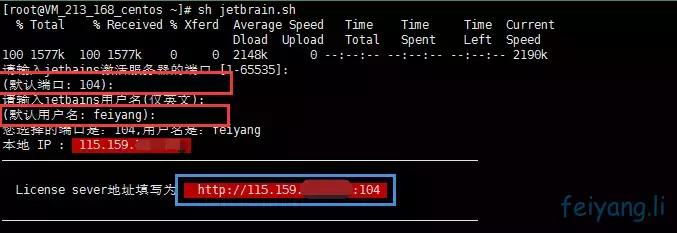
首先需要 screen 和 curl 两个组件,apt-get install curl screen 进行安装

一键脚本:wget https://down.gloriousdays.pw/Tools/JetBrains/jetbrain.sh && sh ./jetbrain.sh

会出现两个空,用于输入端口号和默认用户名,建议直接回车,否则可能会出现莫名其妙的错误。

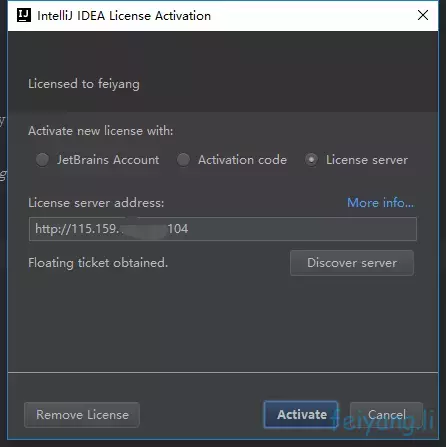
将最后那个License sever地址记下,之后激活用。

分分钟应该就会弹出提示,一劳永逸解决激活问题。